HOWTO: Install, configure and troubleshoot Brooktrout TRxStream boards.
Print
ZTN1602
ID: ZTN1602
This Zetafax technical note applies to:
- Version 10 SP1 to Version 12 (2008)
Summary
This document outlines the process involved for installing, configuring and troubleshooting a Brooktrout board.
More information
Before you begin the installation of your Brooktrout board, you need to ensure the device is supported with your operating system and your version of Zetafax. Please look at the tables in the appendices to confirm your setup is supported
Zetafax version 11 Brooktrout Installation
Please note: You need to run the Zetafax Server and check for updates before setting up your board (Help> > Check for updates).
The following instructions are demonstrated in a video, if you would like to see the installation, configuration and troubleshooting process, please follow this link:
HOWTO: Install, configure and troubleshoot Brooktrout TRxStream boards
Alternatively, each section has its own web video.
Installing the board to your system
Click here for the web video
- Before installing the board into the PCI slot on your machine, you need to ensure the module number is set to “2” or higher (2-F in hexadecimal), this will ensure the firmware can be downloaded to the board.
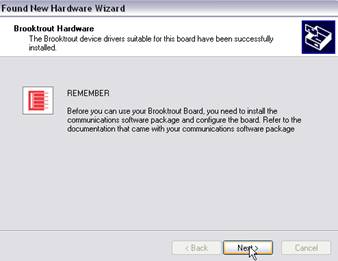
- After booting up your machine, the “found new hardware wizard” should prompt you to install the drivers for the board. You can close the wizard, browse and run the following file:
\zfax\SERVER\Boston\Trxstream\x86\boston.msi
(where zfax is the location of your Zetafax Server installation folder, usually C:\Program Files\Zetafax Server\)
This will install the drivers for your board into Windows.
Configure the Brooktrout board
Click here for the web video
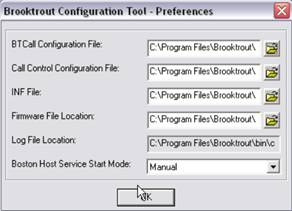
- Once you have successfully installed the drivers and configuration software, the configuration program will ask you where to store the configuration files for the board, select the default location and click ok. (The contents of these files are less than 1MB)
If you are not prompted for the location of the configuration files, you may need to run the configuration console from Start> > Programs> > Brooktrout Configuration Manager.
- The Brooktrout configuration tool will display the various settings for your Brooktrout fax board, these will vary depending on your board, for example if you have an analogue board your configuration should look similar to the one below:
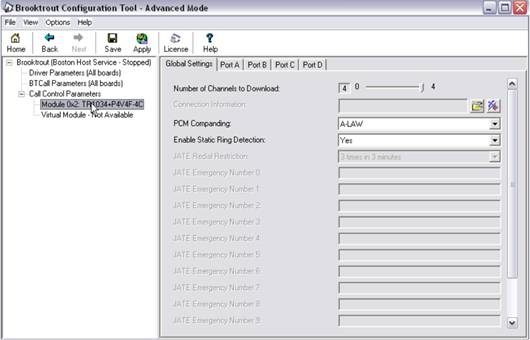
Generally, you will not need to configure any settings, as the default configuration will suffice; the only setting you should check at this point is the Country code under BTCall Parameters. If in the UK or Europe, you need to select the "European Community", otherwise select the necessary country.
You may need to modify the call control parameters to suit your setup, these settings are explained below:
Call Control Parameters> > Module x:
PCM Companding - This should be set to "A" for the UK and Europe, or "Mu" for Japan and America.
Datalink (BRI only) - Auto Detect should be fine for most connections, however, if you are having issues sending/receiving, you should manually configure this setting to match your setup. If your board is connected directly to the ISDN line, you should select "point to point", if you are connected to a PBX phone system, you will most likely need to select "point to multipoint".
Call type - (BRI only) - Again, Auto should be fine for most connections, however, if you are experiencing issues you may benefit from specifying the type best suited for your setup.
( UK ) |
Country code |
PCM Companding |
Datalink |
Call type |
Analog |
0190 |
N/A |
N/A |
N/A |
BRI/ISDN2e |
0190 |
A |
Auto |
Auto |
E1/ISDN30 |
0190 |
A |
N/A |
N/A |
- Once you are happy with the configuration of the board, click "Save" to save the configuration, then click "Apply". The new configuration should be downloaded to the board, if this fails, the board has not been installed correctly.
(a) You need to remove the board from the device manager (Right-click My Computer and select Manage> > Devices> > Computer Telephony> > TRxStream. Right-click again and select Uninstall)
(b) Uninstall the software (Start> > Control Panel> > Add/Remove software> > Brooktrout System Software> > Uninstall) reboot and start again.
- Repeat the above steps until you are able to apply the firmware to the board, if you are unable to apply the firmware to the board, Zetafax will not be able to initialise the board.
Adding the board to Zetafax
Click here for the web video
- Open the Zetafax configuration console (Start> > Programs> > Zetafax Server> > Zetafax configuration console) and select devices.
- Right-click and select "Add", click Next and select "Brooktrout board" from the list of devices.
- Choose the board you have added to the system (remember to follow the table in the appendices to ensure you select the correct one), and click Next and Next again, Zetafax will try to apply the firmware to the board.
- Select the module number (default is 2) and specify the channels used and user to receive incoming faxes. Click Next and then click Finish.
- You have now added the board to the Zetafax Server. When you start the Zetafax Server, you should see the board successfully initialise, and notice each of the channels status turn to "Idle".
Troubleshooting
Click here for the web video
Provided you have installed and configured your board correctly, you should be able to initialise the board in the Zetafax Server. If you are unable to do so, there may be an issue with the versions of drivers for the board or Zetafax.
- You need to ensure the following files match the version of Zetafax (the files below are for v11):
bostdlld.dll - 5.2.0.3
BTBINIT.EXE - 11.0.550.0
DEVBTB.EXE - 11.0.551.0
Browse to the \zfax\SERVER\ folder, right click the file, select properties and open the version tab.
- You also need to ensure the correct driver is listed in the \zfax\SERVER\Boston\Trxstream\x86\
boston.sys - 5.2
If these files do not match, Zetafax will not be able to initialise the board. You need to replace these files with the files listed in the following technote:http://www.equisys.com//technotes/ztn1562.htm
You also need to ensure the driver installed in windows matches the version of the bostondlld.dll above. Browse to the following location and check the boston.sys, which should be 5.2
C:\WINDOWS\system32\drivers
Now that you have confirmed the file versions are correct, Zetafax should be able to initialise the board and send/receive faxes.
If the board initialises and you are unable to send/receive faxes using the Zetafax server, you should try the fax diagnostic tools available from the cantata website.
Using the fax diagnostic tool
Click here for the web video
Cantata provides various tools to help troubleshoot their boards. You can download these tools from the Cantata website. The link below is for the TR1034 using SDK 5 (Zetafax 2007):
http://www.dialogic.com/support/helpweb/brooktrout/download/FaxVoiceDiag.1.2.8.SDK_5.0_ONLY.zip
Once you have downloaded and extracted the file, you need to run the FD52.exe which will launch the fax diagnostic tool. This tool will allow you to download the firmware and initialise the board which let you send a fax without the use of Zetafax.
You need to follow these instructions to send a fax from the Fax diagnostic tool:
- If the "1.Driver" button is not greyed out, you need to click the button to install the drivers.
- Select "2.Telephony" to configure the settings outlined in step 1 of "configure the Brooktrout board" and press "apply" to download the firmware to your board.
- Select the drop down box and choose the module number for your board (default is 0x02), then click the "3.Initialise" button. The port status should change from "Not Available" to "Waiting for Call" and the text box should change colour from white to green.
- Now you can enter a fax number in one of the ports text box and press "current" under the "Dial/Send" section.
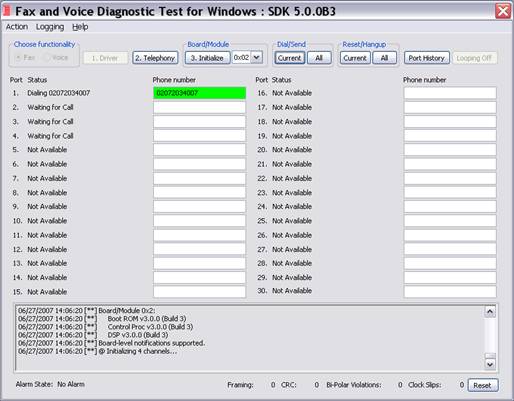
If you are able to successfully send a fax, you need to follow these instructions:
- Backup the btcall.cfg and callctrl.cfg from the C:\Program Files\Brooktrout\config\ directory
- Browse to the root of the fax diagnostic tools directory (the files downloaded from Cantata) and copy the btcall.cfg and callctrl.cfg
- Paste the files you just copied into the C:\Program Files\Brooktrout\config\ directory.
- Launch the Zetafax Server and send a test fax.
If you are unable to send a fax from this tool, you need to ensure your board is connected to the phone line correctly and that the line is active.
Appendices
Please ensure your operating system supports the board you will install
|
Windows NT Server |
Windows 2000 Pro |
Windows 2000 Server |
Windows XP Pro |
Windows 2003 Server |
Windows Vista |
TR114 PCI |
Yes |
Yes |
Yes |
No |
Yes |
No |
TR114 ISA |
Yes |
Yes |
Yes |
No |
No |
No |
TR1034 PRI |
Yes |
Yes |
Yes |
Yes |
Yes |
No |
TR1034 BRI |
Yes |
Yes |
Yes |
Yes |
Yes |
No |
TR1034 Analog |
Yes |
Yes |
Yes |
Yes |
Yes |
No |
Trufax Analog |
Yes |
Yes |
Yes |
No |
Yes |
No |
TruFax Analog RoHS |
Yes |
Yes |
Yes |
Yes |
Yes |
No |
TruFax BRI |
Yes |
Yes |
Yes |
Yes |
Yes |
No |
Please ensure the version of Zetafax supports the board you are planning to install.
Products to configure as a TR1034 |
|
901-002-15 |
TruFax 100-Europe |
1 Channel Loop Start; Universal PCI (Full size) |
901-002-16 |
TruFax 200-R-Europe |
2 Channel Loop Start; Universal PCI (Full size) |
901-002-17 |
TruFax 100-R UK |
1 Channel Loop Start; Universal PCI (Full size) |
901-002-18 |
TruFax 200-R UK |
2 Channel Loop Start; Universal PCI (Full size) |
|
|
|
Products which require Cantata SDK5 |
|
901-004-01 |
TR1034 +uP2C-R |
2 port analogue combination DID |
|
901-004-02 |
TR1034 +uP2D-R |
2 port analogue DID |
|
901-004-03 |
TR1034 +uP4C-R |
4 port analogue combination DID |
|
901-004-04 |
TR1034 +uP4D-R |
4 port analogue DID |
|
|
|
|
|
901-004-07 |
Trufax 100-R PCI |
1 Channel Loop Start; Universal PCI (half size) |
|
901-004-08 |
TruFax 200-R PCI |
2 Channel Loop Start; Universal PCI (half size) |
|
901-004-09 |
TruFax 100-R PCI UK |
1 Channel Loop Start; Universal PCI (half size) |
|
901-004-10 |
TruFax 200-R PCI UK |
2 Channel Loop Start; Universal PCI (half size) |
|
References
HOWTO: Upgrade to version 5.2 of the Brooktrout drivers
Last updated: 04/07/07 (TA/GC)