HOWTO: Updating to Zetafax 2007
Print
ZTN1577
ID: ZTN1577
This Zetafax technical note applies to:
- Users updating to Zetafax 2007.
Summary
This document describes how to update a Zetafax installation to version 2007.
More information
Instances under which you cannot update the Zetafax Server
Zetafax Server 2007 is only supported on Windows 2000, Windows XP, Windows Vista and Windows Server 2003. Support for other operating systems is not available.
Updating an installed version of the Zetafax Server
If you are updating a previously installed version, please follow the procedure outlined below:
- Shut down the Zetafax Server or stop the Zetafax Server service with the Services applet in Control Panel.
- Run the installation program (SETUP.EXE) from the CD-ROM or download the most up-to-date version (ZETAFAX.EXE) from the Equisys website.
- If you are updating to v2007 from an existing version 9, 9.1 or v2006 install you will be asked if you wish to upgrade the Zetafax Server. Click 'Yes' to confirm that you do and click "Install" to start the upgrade process.
- The install will prompt you to enter an upgrade license. Zetafax licenses are normally located on stickers on the product case, or will be emailed to you by a member of the sales team. After you have entered the license click "Next" and then "Install" to start the upgrade process. The upgrade should then run and complete without further user intervention.
- When you click on "Finish", Zetafax will be ready to be re-registered. You can do this by starting the Zetafax Server and then opening a Zetafax Client. The client will automatically prompt you to send a new registration fax.
Installing Zetafax Server on a clean system
If you are updating to a new version of Zetafax, where the old version is no longer installed, or are installing Zetafax Server for the first time, you should follow these instructions:
- Run the installation program (SETUP.EXE) from the CD-ROM or downloaded version of Zetafax (ZETAFAX.EXE) from the Equisys website.
- You will be asked to enter your license details. Enter your Starter system license in the license box. This is the three-part license number that was given to you when you first purchased Zetafax. The install will warn you that this is an old starter license number and that you will need to enter an upgrade license once the install has completed.
- Click "Next" and then select the folder you wish to install the Zetafax Server to. Then click "Install" on the last dialog in the sequence. The install should then run and complete without further user intervention.
- Once the install has completed you should run the Zetafax Configuration program. This can be launched from the Start menu (Start-> Programs-> Zetafax-> Zetafax Configuration). The first time it is run the configuration program will take you through the "Configuration Wizard".
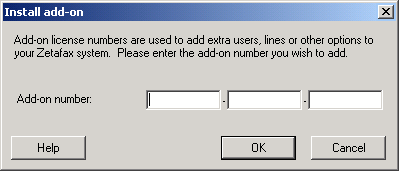
- The "Configuration Wizard" will display a warning dialog telling you that you need to enter a license. Click "OK", you will now get a dialog captioned "Install add-on" (see above). Enter the upgrade number you were given when you purchased the new version. Make sure you also enter any other upgrades you might have obtained in the past (additional lines or users, for instance) - you can do this from the next dialog
- Click "Next" and enter your details in all the proceeding dialogs. When you click on "Finish", your new Zetafax installation will be ready to be registered. You can do this by starting the Zetafax Server and then opening a Zetafax Client. The client will automatically prompt you to send a registration fax.
- The program will now run through a series of wizards which will guide you through the basic configuration of your Zetafax Server.
Updating the Zetafax Client
Once the server is updated, you are ready to update the Zetafax clients. To do this, log on to each user's PC as the network administrator and ensure the Zetafax Client is not running. Open windows explorer and browse to the network share for your Zetafax Server, open the "SYSTEM" sub-folder and run the "wksetup.exe" program. If you have an existing version 9 or later Zetafax Client the install will detect this and ask if you wish to remove the old installations before installing the new Zetafax Client Applications install; if you click "Yes" and then follow the installation wizard, the install will then run and complete. If there is no existing Zetafax Client on the machine, or a version 8 or earlier Client, then the install will simply install a new Client.
Group Policy
The Zetafax Client Applications can be rolled out using Group Policy for both updates and new installs. Please consult the online help documentation for advice on how to do this.
Upgrading the Zetafax Exchange Connector for Exchange 2000/2003
In order to upgrade the Zetafax Exchange Connector, you must first uninstall the existing connector on the Exchange Server. To do this: -
1. Log on as a user with sufficient rights, for example, Domain admin rights (Including schema admin rights on active directory if it's a Windows 2000/2003 domain).
2. Open the Control Panel and double-click Add/Remove programs.
3. Select Zetafax Exchange Connector and click Uninstall.
4. Restart the Exchange server.
Having uninstalled the Zetafax Exchange connector for Exchange 2000/2003 systems you will need to run the Zetafax Exchange 2000/2003 Schema Utility that can be downloaded from:
http://www.equisys.com/support/software_updates_for_zetafax_2007.html
Next, install the new connector from the Zetafax CD. To do this: -
1. Insert the CD in the CD-ROM drive. The installation program runs automatically.
2. In the dialog displayed, select Install Zetafax, and then choose the relevant option from those listed.
Upgrading the Email Gateway
The Zetafax Server installation program now includes the Zetafax Email Gateway files.
As a result, the Email Gateway is automatically upgraded when the Zetafax Server is upgraded.
Upgrading the Zetafax Outlook Extensions
The Outlook Extensions for Outlook 2000 and later are now included in the Zetafax Client Applications combined installer. There is no separate installer. The Zetafax Client Applications installer also upgrades the custom Outlook forms as appropriate.
Please note that the Zetafax Client Applications installer will not install integration for Exchange 5.5 users. This is done via a manual install of the Outlook Extensions. The advice on how to do this is as follows.
To install the Organizational Forms: -
1. Copy the zetafax.pst file from \Zetafax\Zfforms on the Zetafax CD to a local folder on a client PC with Microsoft Outlook installed.
2. Start Outlook and log on as the user with 'Owner' permissions on the Organizational Forms folder.
3. In Outlook, select Open> Outlook Data File. from the File menu and browse to zetafax.pst, then click OK.
4. In the Outlook folder list, select the Zetafax folder just added and browse to the Forms folder.
5. Open the Install the Forms message.
6. Click the Install Forms button at the bottom of this message. This may take a few seconds.
To install the Outlook Extensions on a users PC: -
1. Copy the Zetafax Outlook Extensions install folder from the Zetafax CD to a network share. For Exchange 5.5, this is \zetafax\ZfOutExt. These can also be downloaded from the updates page on the website:
http://www.equisys.com/support/software_updates_for_zetafax_2007.html
2. Close Outlook and install the Zetafax Outlook Extensions (run setup.exe from the shared folder).
3. Start Microsoft Outlook.
4. In the zetafax.pst file opened in step 3 when installing the Organizational Forms, you will see an email titled Welcome to Zetafax Outlook Extensions.
5. Edit the user message and replace < < path to the file> > with the network path to which you copied the Zetafax Outlook Extensions install folder.
6. Finally, you should forward the Welcome to Zetafax Outlook Extensions message to all users to install the extensions on their computers.
Note: Users need to have local administrator rights to install the extensions themselves.
Upgrading the Zetafax Web Client
On the server hosting the Web Client, run the install program from the Zetafax CD. During the install, you are prompted to re-enter the account name and password created when you installed the earlier version of the Web Client.
Upgrading Zetafax Notebook Installations
To upgrade notebook installations (having already upgraded the main Zetafax Server): -
1. Insert the (new) Zetafax CD into the machine with a notebook install.
2. Connect the notebook PC to the network and run Setup.exe from the CD. The install detects the notebook install and updates it.
3. Once the update is completed, upgrade the Zetafax Client (see section on Upgrading the Zetafax Client above).
Upgrading Zetafax API applications
If your Zetafax API application uses ZFAPI32.DLL, ensure that your application loads the updated version of the DLL installed with the updated Zetafax Server. If your application links statically to the API library (ZFAPIS.LIB), you should recompile your application and link to the updated library file, which is also installed with the updated server.
Upgrading the Zetafax SMTP Server
On the server that has the SMTP Server installed, run the install program from the Zetafax CD.
Last updated: 3 April 2007 (GR/DH)